
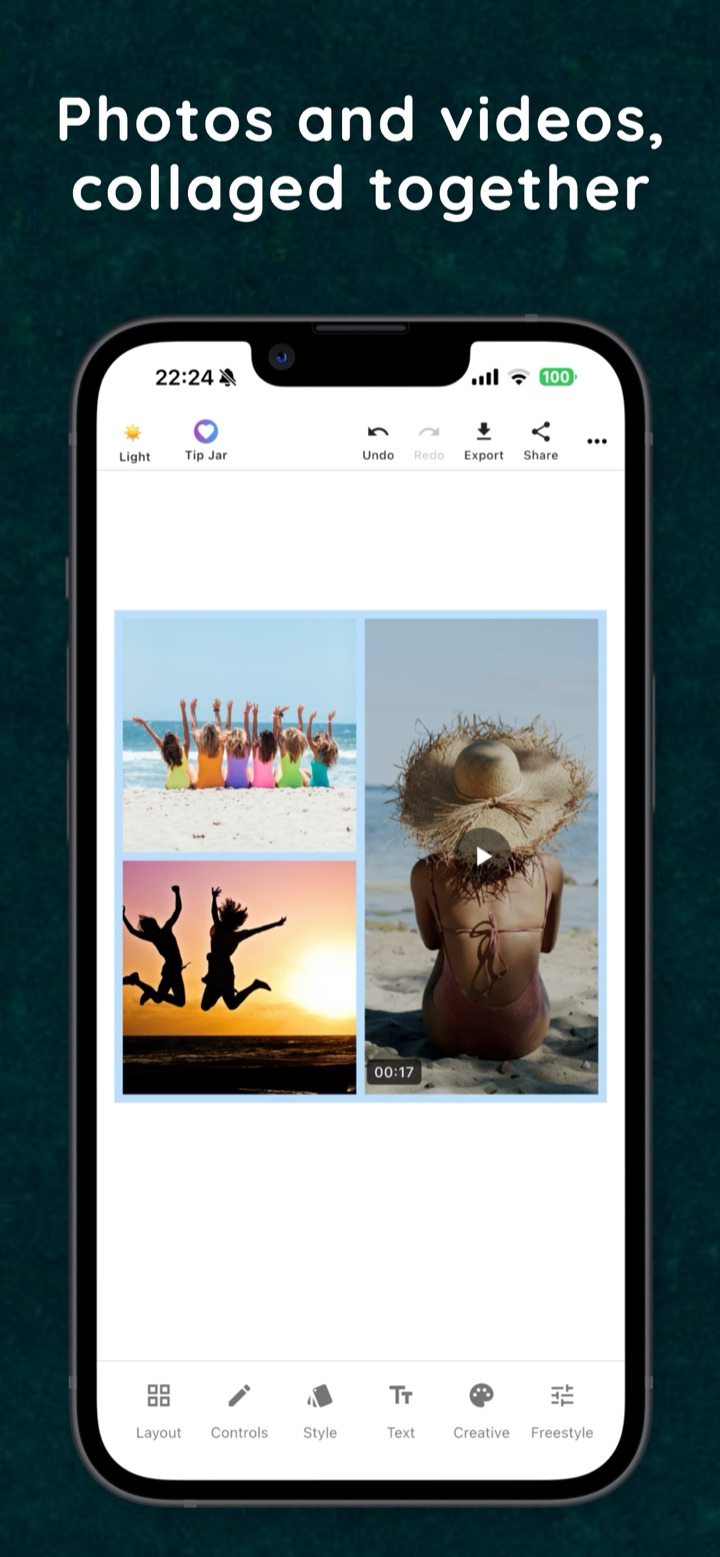
You have three good photos and one 17-second clip from the same beach day, and you want them in one post. Not a slideshow, and not four separate posts. One frame, with the video playing next to the photos.
That's the job we built Photo Collage for. Below is how to do it on iPhone, start to finish. The limits are listed too, so you don't find them halfway through.
1. Get your clips ready first
Photo Collage uses each video as it is. There's no trimming inside the app. If you only want the best five seconds of a clip, trim it in the Photos app first: open the video, tap Edit, and drag the ends of the timeline.
Each clip can be up to 5 minutes long. For a collage, shorter is usually better anyway. People scroll past long clips.
2. Pick a layout by photo count
Open the Layout tab. There are 108 layouts, from plain grids to shapes like a heart, a star or a hexagon. The shapes live under Special.
The quickest way to choose is to filter by how many items you have. Three photos and one clip makes four, so filter for four and you'll only see layouts with four cells. That cuts 108 options down to a handful you can actually compare.
One tip: give the video the biggest cell. Most phone videos are shot vertically, so a tall cell down one side works well. That's what the layout in the screenshot above does, with the clip on the right and two photos stacked on the left.
3. Add photos and videos
Tap an empty cell to fill it. Photos and videos go into the same layout, so you can mix them however you like. One clip and three photos works. So do two clips side by side with nothing else.
4. Choose how the videos play
Once there's more than one clip, you decide how they play. They can play together, at the same time, or in sequence, one after another.
Together is good for comparisons, like a before and after, or two angles of the same moment. In sequence gives each clip the viewer's full attention, which suits a short story: arriving, the main event, leaving.
Each clip also has its own volume. That helps when one clip has the sound you want and the others are mostly wind. Turn the others down and keep the one that matters.
5. Decorate it, or don't
This is the step that makes birthday, wedding and memorial collages feel personal. Under Style there are 14 frames and 27 backgrounds, and you can use one of your own photos as the background instead. Text comes with 10 fonts, so you can add a name or a date.
The Creative tab has about 830 stickers and emoji, plus a drawing tool if you'd rather write something by hand. A child's name in your own handwriting often beats any font.
A little goes a long way, though. On a video collage the clips already do most of the work. One line of text and a frame is usually enough.
6. Export it as a video
Tap Export. When the collage has a video in it, it's saved as an MP4, up to 1080p, to your photo library. From there you can post it or send it anywhere that takes video.
If the collage has only photos, you get an image instead.
What it can't do
We'd rather you know this before you start:
- No 4K. Video export tops out at 1080p. That's fine for social posts and messages. It's not the tool for a 4K edit.
- No trimming in the app. Trim clips in Photos first, as in step 1.
- 5 minutes per clip. Longer videos need to be cut down before you add them.
If those limits work for you, the whole thing takes a few minutes. Most of that time goes into picking the photos, which is the part no app can do for you.