
The call with the contractor went on for forty minutes. Somewhere in the middle you agreed on a date and who orders the parts, and now nobody remembers which date.
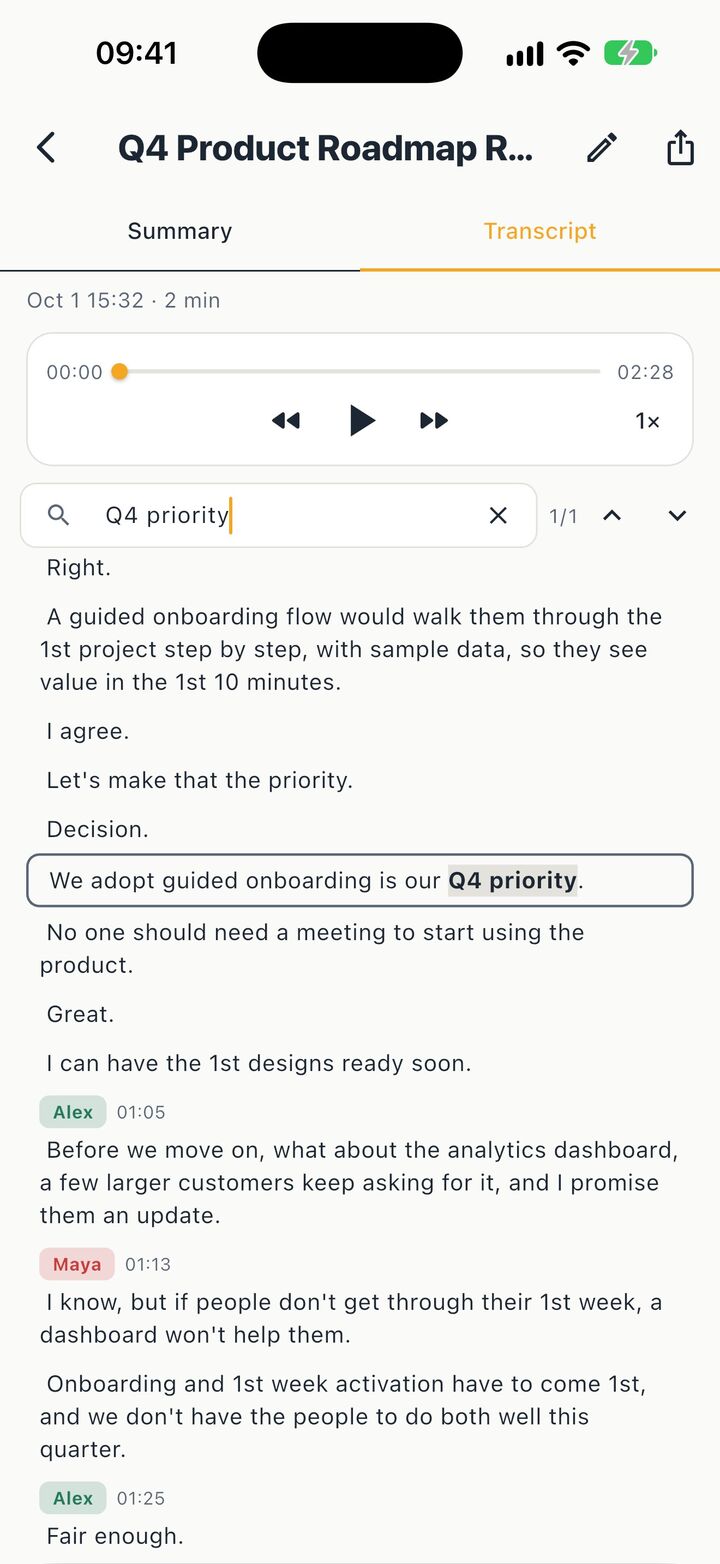
If you recorded the call on your iPhone, the answer is in that recording. Listening to all forty minutes again is the part nobody does. Minuted can take the recording and turn it into a transcript, and on newer iPhones into minutes with the decisions and action items. Here's how.
Before you start: check your iPhone
Minuted needs iOS 26. Transcripts work on an iPhone 12 or newer. The minutes, the decisions, the action items and Ask need an iPhone 15 Pro or newer. On an older iPhone you still get the transcript with speaker names, search and export, but no minutes. I'd rather you know that before you go looking for the recording.
The transcript and the minutes are written on the iPhone itself, and the app works without an internet connection.
1. Record the call
Where Apple offers call recording, the Phone app shows a record button during a call. Everyone on the call is told that it's being recorded, so nobody is surprised. Recording rules differ between countries, so check what applies where you and the other person are.
Hold the phone as you normally would, or use speaker in a quiet room. A call on a bad connection gives a weaker transcript, and the minutes can only be as good as the transcript.
2. Save the audio to Files
The iPhone saves call recordings in the Notes app, in the Call Recordings folder. Open the note for the call, then use the recording's menu or the share button to save the audio to Files. Put it somewhere you'll find again, like a "Calls" folder.
3. Import it into Minuted
In Minuted, import the file from Files. Minuted then writes the transcript, and on an iPhone 15 Pro or newer the minutes too. A long call takes a while, since all of the work happens on the phone. Let it finish before you judge the result.
4. Put names on the voices
A call usually has two voices, sometimes more on a conference call. The transcript labels them as speakers at first. Name a voice once and Minuted remembers it, so when you import the next call with the same person, the transcript already says their name instead of Speaker 2.
5. Read the minutes first
Open the summary before the transcript. You get a short summary of the call, the decisions with a status (Adopted, Proposed, Rejected, Deferred or Superseded), and action items with an owner and the due date as it was said. If nobody clearly took a task, it says "Owner unclear" instead of guessing.
Each decision and action item links to the moment it was said. Tap the play link and you hear that part of the call, so "did we really say the 14th?" takes ten seconds to check.
6. Ask the question you actually had
Often you open an old call for one thing. Ask the meeting, for example "What did we agree about the delivery date?" The answer points to the meeting and the moment, or tells you there isn't enough evidence. Search works across every meeting and call in your library too, and playback runs at 1.5× or 2×.
7. Send the follow-up
Export the minutes or the transcript as a PDF or plain text, or share the audio. For the other person, a short PDF with the decisions and action items is usually enough. You can also send the action items to Reminders, with the owner in the note and a due date only when you pick or confirm one.
The limits
- It works on recordings, not live calls. Minuted doesn't join phone, Zoom or Teams calls. It works with audio you recorded and import.
- Call quality matters. A choppy line or two people talking at once gives a weaker transcript.
- Languages depend on the device. Which meeting languages are available depends on your iPhone and its Apple Intelligence setup.
- It won't invent a decision. If the call ended without one, the minutes have nothing to report there.
- Recording in Minuted needs a subscription.
For in-person meetings
Calls are one half of it. For a meeting in the room, you can record in Minuted directly. It asks for consent before each recording and plays a short tone when it starts, so everyone knows. When you stop, Minuted writes the minutes, and nothing has to sit in a folder first.