
The meeting ends, everyone nods, and a week later nobody is sure who said they'd send the numbers. Action items die in the gap between the room and someone's to-do list. Usually because nobody wrote down the owner and the date while it was being said.
I'm in a lot of in-person meetings and I'm bad at taking notes while I talk. That's why I built Minuted. This guide shows how to get action items with an owner and a due date out of a meeting on your iPhone, and how to get them into Reminders so they actually happen.
Before you start: check your iPhone
Minuted needs iOS 26 and an iPhone with Apple Intelligence, which means an iPhone 15 Pro or newer. It doesn't run on an iPhone 12, 13 or 14. Recording needs a subscription.
It records the room through the phone. It doesn't join Zoom or Teams calls as a bot.
1. Record the meeting
Open Minuted when the meeting starts and tap record. Before each recording a consent prompt comes up, so everyone in the room knows. If the meeting is in your calendar, the Today screen shows it with a Record this meeting button.
You can also say "Record a meeting in Minuted" to Siri, or put a Record a meeting control in Control Center or on the Action button. Recording still starts only after the consent sheet.
Put the phone on the table, roughly in the middle. That helps more than anything else.
2. Read the action items, not the transcript
When the meeting ends, Minuted writes the minutes. Skip the full transcript and go to the decisions and action items.
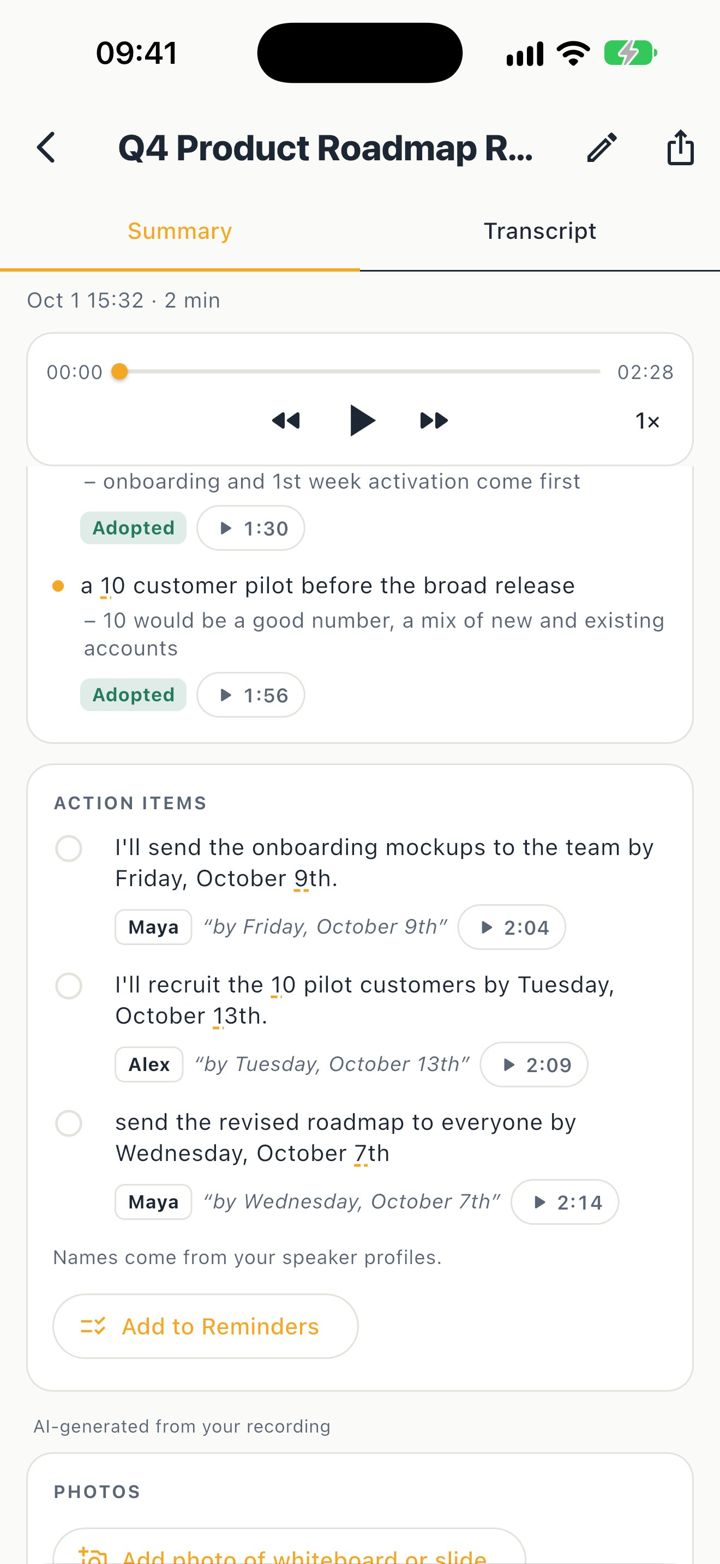
Each action item comes with:
- An owner, taken from the speaker names. If nobody clearly took it on, it says "Owner unclear" instead of guessing.
- The due date as it was said, like "by Friday" or "end of the month".
- A done checkbox, so you can tick items off in the meeting page itself.
Decisions are listed separately, with a status: Adopted, Proposed, Rejected, Deferred or Superseded. That keeps "we could try X" apart from "we're doing X". If two decisions contradict each other, Minuted points it out.
"Owner unclear" is useful in itself. It tells you which items need an owner before they slip.
3. Check anything you're not sure about
AI minutes aren't always right, so every decision and action item links to the moment it was said. Tap the play link next to it and you hear that part of the meeting. If you deleted the audio, you see the transcript line instead.
This is the step I use most. "Did we really agree to that?" takes five seconds to answer.
4. Name the voices once
The owners come from the speaker names. The first time, the transcript shows voices as speakers. Rename them once and Minuted recognizes those voices in later meetings, so the next owner shows up as "Maya", not "Speaker 2".
5. Send the action items to Reminders
Open the action items and tap Add to Reminders. Pick the items you want. The owner goes into the reminder's note. A due date is only set when you pick or confirm one, because "soon" isn't a date.
Now the items sit where you already check your tasks, next to everything else.
6. Send the follow-up
Minuted drafts a follow-up email to the people invited in your calendar, with the decisions and action items. Read it, change what you want and send it. Everyone gets the same list of who does what, the same day.
You can also export the minutes as a PDF or text.
Tips
- Say the owner and the date out loud. "Maya, can you send the numbers by Friday?" gives Minuted both. "Someone should look at that" gives it nothing.
- Recap at the end. A 30-second "so, to sum up" helps people in the room and helps the minutes.
- Snap the whiteboard. Add a photo of the whiteboard or a slide to the meeting. The text on it is read on the iPhone, and you can find it later.
Where it falls short
Minuted is only as good as what it hears. In a loud room, or with people far from the phone, names and dates get missed. That's why the play links matter.
It also can't know what wasn't said. If the date was agreed in a hallway afterwards, add it yourself.
And it needs a recent iPhone. If yours is older than an iPhone 15 Pro, this won't work for you, and I'd rather say that up front.
Quick recap
Record the meeting, open the action items, check anything unclear with the play links, and send the items to Reminders. The owner and the date get written down while they're being said, which is the part that usually goes missing.