
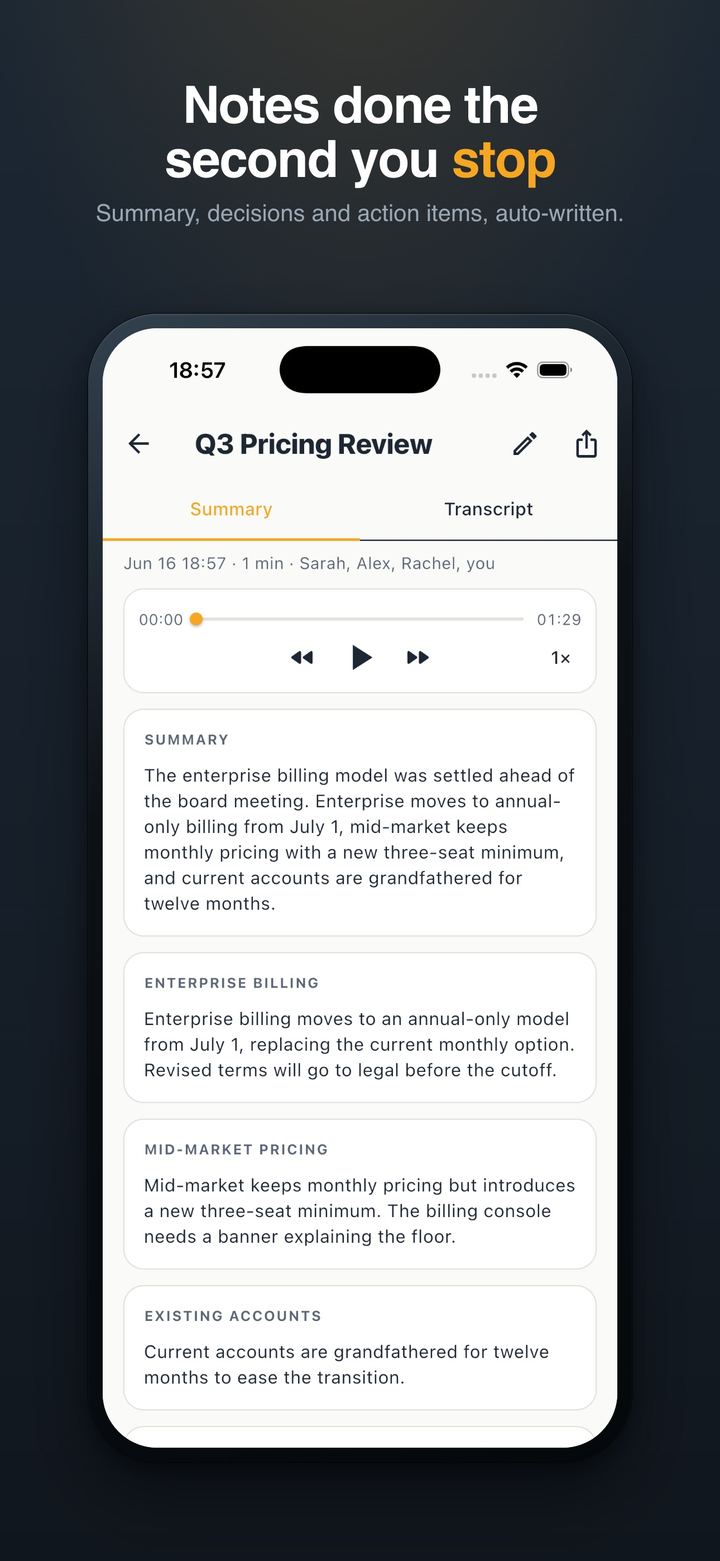
You hit record in Voice Memos at the start of the meeting. That part went fine. Two weeks later the file is still sitting there, most of an hour long, and nobody has written up what was decided.
That's a common way meeting notes die. The recording exists, but listening back takes as long as the meeting did. Minuted can take that file and turn it into a transcript and written minutes on your iPhone. Here's how, and where it falls short.
Before you start: check your iPhone
Minuted needs iOS 26 and an iPhone with Apple Intelligence, which means an iPhone 15 Pro or newer. It won't run on an iPhone 12, 13 or 14. I'd rather you know that now than after you've found the recording.
The transcription and the minutes are written on the device, and the app works without an internet connection.
1. Get the recording out of Voice Memos
Open Voice Memos and find the recording. Use the share button to save it to Files. Pick a folder you'll find again, like Downloads or a "Meetings" folder.
The same works for recordings that are already in Files, and for iOS call recordings.
2. Import it into Minuted
In Minuted, import the file. Minuted then writes the transcript and the minutes from it.
A long recording takes a while, since all of the work happens on the phone. Let it finish before you judge the result.
3. Read the minutes, not the transcript
This is the step that saves the time. Open the Summary tab first, as in the screenshot above. You get:
- A short summary of what the meeting was about.
- Decisions, listed on their own, so "we agreed to move the launch" doesn't get lost in a paragraph.
- Action items with an owner and a due date, when the meeting named them.
For most old recordings, that's all you needed. Who agreed to what, and what happens next.
4. Fix the names
The transcript labels voices as speakers. Name a voice once and Minuted remembers it, so the same colleague is recognized by name in your next meeting instead of showing up as Speaker 2 again.
5. Ask it what you actually wanted to know
Often you open an old recording for one reason: "What did we say about the budget?" Instead of scrubbing through the audio, ask the meeting a question and get an answer based on the transcript.
Search works across every meeting in your library, too. If you remember a word but not which meeting it came from, search for it.
When you do want to hear a part again, playback runs at 1.5× or 2×.
6. Send the minutes to the people who were there
Export the minutes or the full transcript as a PDF or plain text. You can also share the audio file itself. A PDF of the decisions and action items is usually what the others want. Few people will read a full transcript.
The limits
- Audio quality matters. A phone face down in the middle of the table works. A phone in a pocket, or four people talking over each other, gives a weaker transcript, and the minutes can only be as good as the transcript.
- Languages depend on the device. Minuted handles meetings in several languages, but which ones are available depends on your iPhone and its Apple Intelligence setup. Check before you rely on a specific one.
- It works on recordings, not calls it joins. Minuted doesn't join Zoom or Teams calls. It works with audio recorded on the phone or files you import.
- It won't guess what nobody said. If a meeting ended without a clear decision, the minutes have nothing to report there. Check the transcript for loose ends.
For the next meeting
Importing old recordings is the catch-up job. For the next meeting you can record in Minuted directly. It asks for consent before each recording and plays a short tone when it starts, so everyone in the room knows. The minutes are ready when you stop, and the file doesn't sit in Voice Memos for two weeks first.