
You make a collage, open Instagram, and the crop box chops off the top row of photos. Or the whole thing shows up small, with grey bars around it. The collage was fine. It was just the wrong shape for where it was going.
The fix is boring but it works: choose the size for the place you're posting before you add a single photo. Here's how to do that on iPhone with Photo Collage (on the App Store as Collage Maker: Photo & Video), plus a few things that keep faces from getting cut off on the way.
1. Know which shape Instagram wants
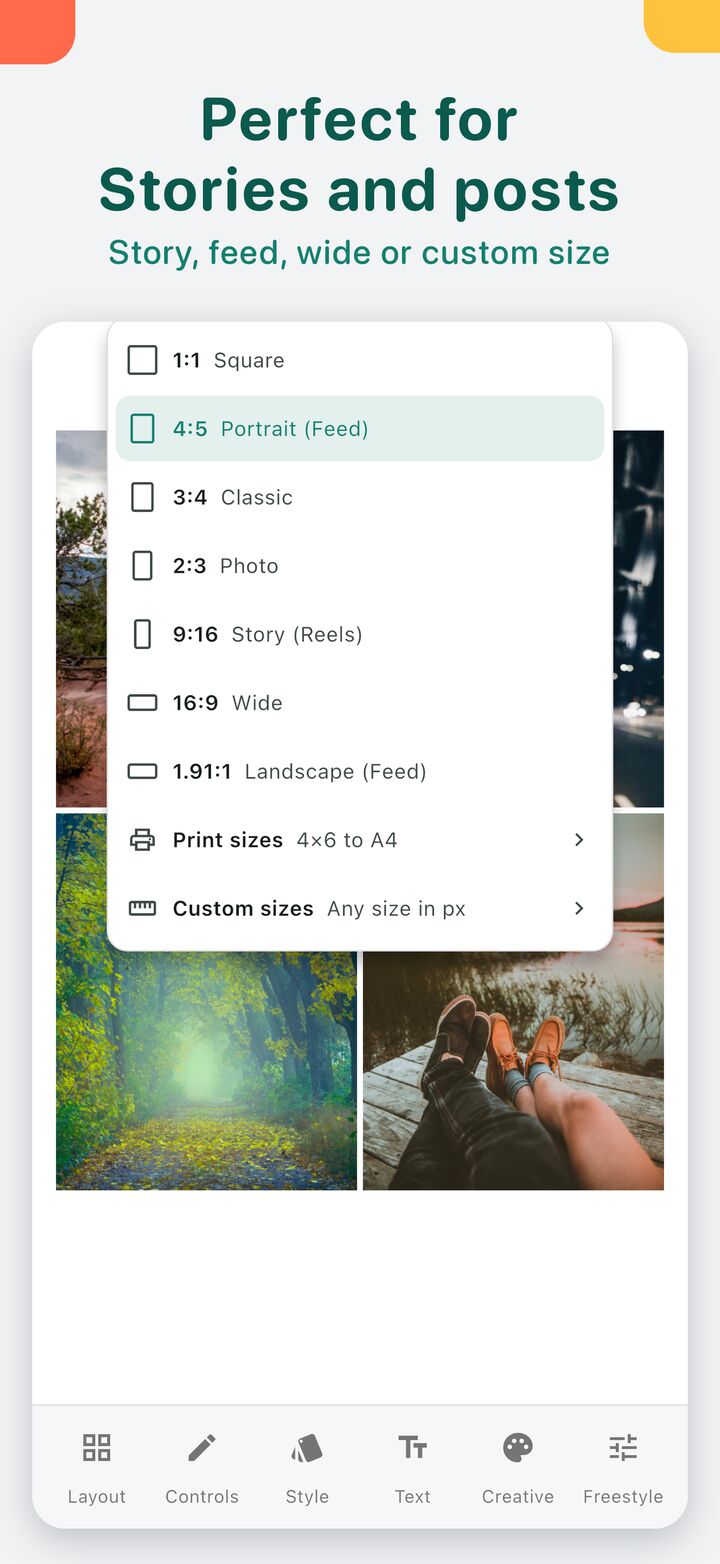
Instagram shows posts in a few shapes, and each one has a size in the app's size menu, which is what the screenshot above shows.
- Feed post: 4:5, listed as Portrait (Feed). It's the tallest shape the feed shows without cropping, so it takes up the most screen while people scroll.
- Story or Reel: 9:16, listed as Story (Reels). Full screen, top to bottom.
- Square: 1:1, if you like the classic look or plan to reuse the collage somewhere square.
- Wide feed post: 1.91:1, listed as Landscape (Feed). It shows up short in the feed, so it only makes sense for a panorama or a row of photos.
If you're not sure, use 4:5 for the feed and 9:16 for Stories. Those two cover most posts.
One thing to know about the profile grid. Instagram shows posts there a little narrower than 4:5, so a thin strip on each side is hidden on your profile page. The post itself is still shown in full. Just keep important faces away from the outer edges.
2. Set the size first, then add photos
Pick the size before anything else. A layout that looks balanced in a square can look stretched at 9:16, and if you change the shape at the end you often end up rearranging everything. Start with the right shape and everything you pick after that already fits.
Then add your photos. Select them all at once and they fill the cells in order. Any that don't fit wait in Extras below the collage, so you can try a layout with more or fewer cells without picking them again.
3. Pick a layout that suits the shape
The layout picker opens on the number of photos you've added, so with five photos you only see layouts with five cells. There are 219 of them, including masonry, bento, film strip and polaroid styles.
For a tall 4:5 or 9:16 collage, layouts with stacked rows tend to work better than a wide grid. On a phone screen, two or three rows of larger photos read better than nine tiny ones. If there's one photo that tells the story of the day, give it the biggest cell.
4. Keep faces in the frame
Each cell crops its photo to fit, and a cell that's much wider than the photo will cut off heads or feet. You have a few ways to fix that.
- Drag the photo inside its cell to move what's shown.
- Use Fit whole photo to show the entire photo in its cell.
- Press and hold a photo and drag it onto another to swap them. A tall portrait often fits better in a tall cell, and the crop and filter move with it.
- Reset position puts it back if you've moved it too far.
5. Leave a little room
Collages that sit right against the edge of the post look cramped once Instagram adds its own interface around them. In Controls you can add spacing between photos, round the corners and set an outer margin, so there's a small border around the whole thing. A white or soft-coloured border usually looks cleaner in the feed than photos running edge to edge.
6. Add a caption only if it helps
Instagram already has a caption field, so text on the collage is optional. If you add some, keep it short and away from the bottom of a 9:16 Story, where the reply bar sits. There are 41 fonts with outline and shadow, so the text stays readable over a busy photo.
7. Save it and post it
Save the collage to Photos, then post it from Instagram as you normally would. Because the collage already has the right shape, the crop box should line up with it and there's nothing to adjust.
Every collage you save also stays in My collages in the app. If you notice a typo after posting, open it again, fix it and save it again.
Limits to know
- The 4:5 and 9:16 sizes are free. Print sizes and custom sizes in pixels are part of Premium, and you don't need them for Instagram.
- Video collages save as video, up to 1080p. There's no 4K.
- The app saves the collage to your phone. It doesn't post to Instagram for you.
- This guide covers the iPhone and iPad app. The Android version has a different feature set.
Pick the shape first and most of the cropping problems never show up. The rest is choosing the photos, which is the fun part anyway.