
The fridge is full, the school bag brings three more on Friday, and there's a box in the cupboard you don't want to open. Throwing a child's drawing away feels wrong. Keeping all of them isn't possible.
Most parents end up doing the same thing: keep the paper for a week or two, save a picture of it, and let the paper go. This guide shows how to do that on your iPhone so the drawings end up somewhere you can find them again, sorted by child, instead of lost in the camera roll between screenshots.
We make Fridge Door, an app for kids' drawings, so that's what the steps use.
Why the camera roll isn't enough
A photo of a drawing in Photos works, until there are three hundred of them. They're mixed with everything else, there's no way to tell which child drew what, and nobody scrolls back to them. The point of saving a drawing is to look at it again, show it to grandparents, or make something with it later.
How to save paper drawings on iPhone, step by step
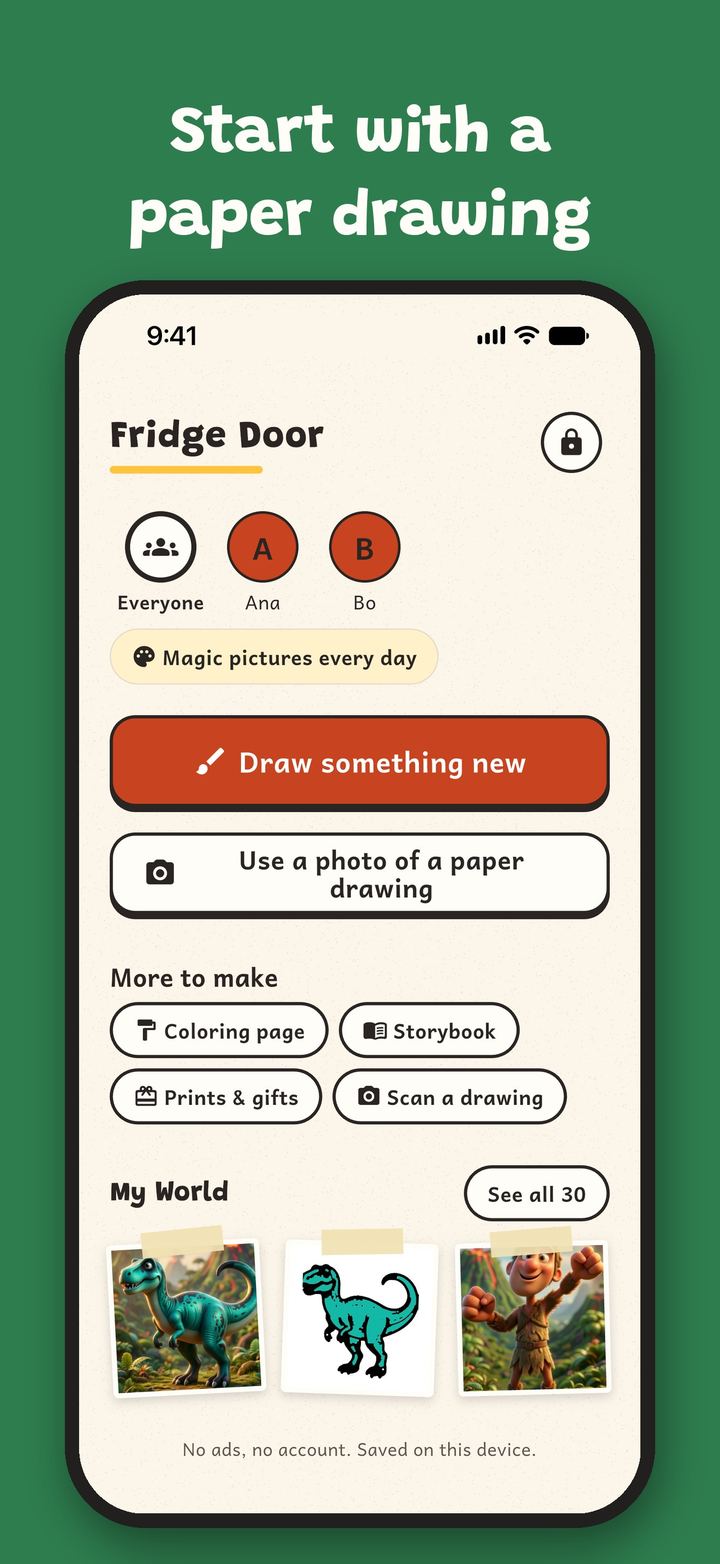
- Open Fridge Door and pick the child. If you have more than one, each child can have a profile with their own gallery (child profiles are part of Premium). Otherwise everything goes into one gallery called My World.
- Tap Scan a drawing. The camera opens. Hold the phone flat above the paper. Daylight from a window works better than a ceiling lamp, and a plain table under the paper helps.
- Or use a photo you already took. Tap Use a photo of a paper drawing and pick it from your library. Good for the drawings you photographed months ago.
- Or send it from Photos. In the Photos app, open the picture, tap Share and choose Save to Fridge Door.
- Find it in My World. Every drawing lands in the gallery of the child you picked, next to the ones they drew in the app.
After that, the paper can go into the recycling, a memory box, or back on the fridge for a week. The copy on your phone stays.
Keep the favourite in sight
A Fridge widget can pin one favourite drawing to your Home Screen. It's a small thing, but it's the part kids notice: their drawing on your phone, where you see it every day.
Do something with the best ones
Saving is half of it. A few things parents do with the drawings once they're in the app:
- Prints and gifts. Turn a drawing into a card, a poster or a little book, and print it at home or share it. Grandparents tend to keep these. Printing one drawing fit to the page is free; card, poster and book formats are part of Premium.
- Coloring pages. Make a coloring page from any drawing or photo of a paper drawing, then color it on screen or print it. A child coloring their own dinosaur again is a different thing from a random printable.
- Storybooks. Kids draw the pages and tell the story, and the app reads it aloud in a voice you pick in Settings.
- Picture magic. A drawing becomes a storybook-style picture in one of 20 looks, with the original drawing kept right beside it. This part needs Apple Intelligence (see below).
What this can't do
- It needs iOS 26 or later, on iPhone or iPad. Scanning, the gallery, coloring pages, storybooks and printing work on every supported device.
- Picture magic and "Write the story for me" need Apple Intelligence, which means an iPhone 15 Pro or newer, or an Apple Intelligence iPad. Picture magic also needs an internet connection on the newest iOS, and Apple sets a daily limit for it.
- The app is in English only.
- It's a home for drawings, not a backup service. The drawings are saved on the device. If you change phones, make sure your device backup is on.
- A scan is a photo of paper. Glossy paper or heavy crayon can reflect light. Tilt the page a little or turn off the flash if you see a bright spot.
Quick tips for better scans
- One drawing per scan. Cropping a photo of four drawings later is slow.
- Do it as a weekly habit: Friday, school bag, five minutes.
- Let the child pick which drawing goes on the widget. They'll check.
Fridge Door has no ads and no accounts. Purchases, links and settings sit behind a grown-up check, so a child can draw and scan without ending up somewhere they shouldn't.
The paper pile won't stop. What changes is that every drawing ends up in one place, with the right child's name on it.