
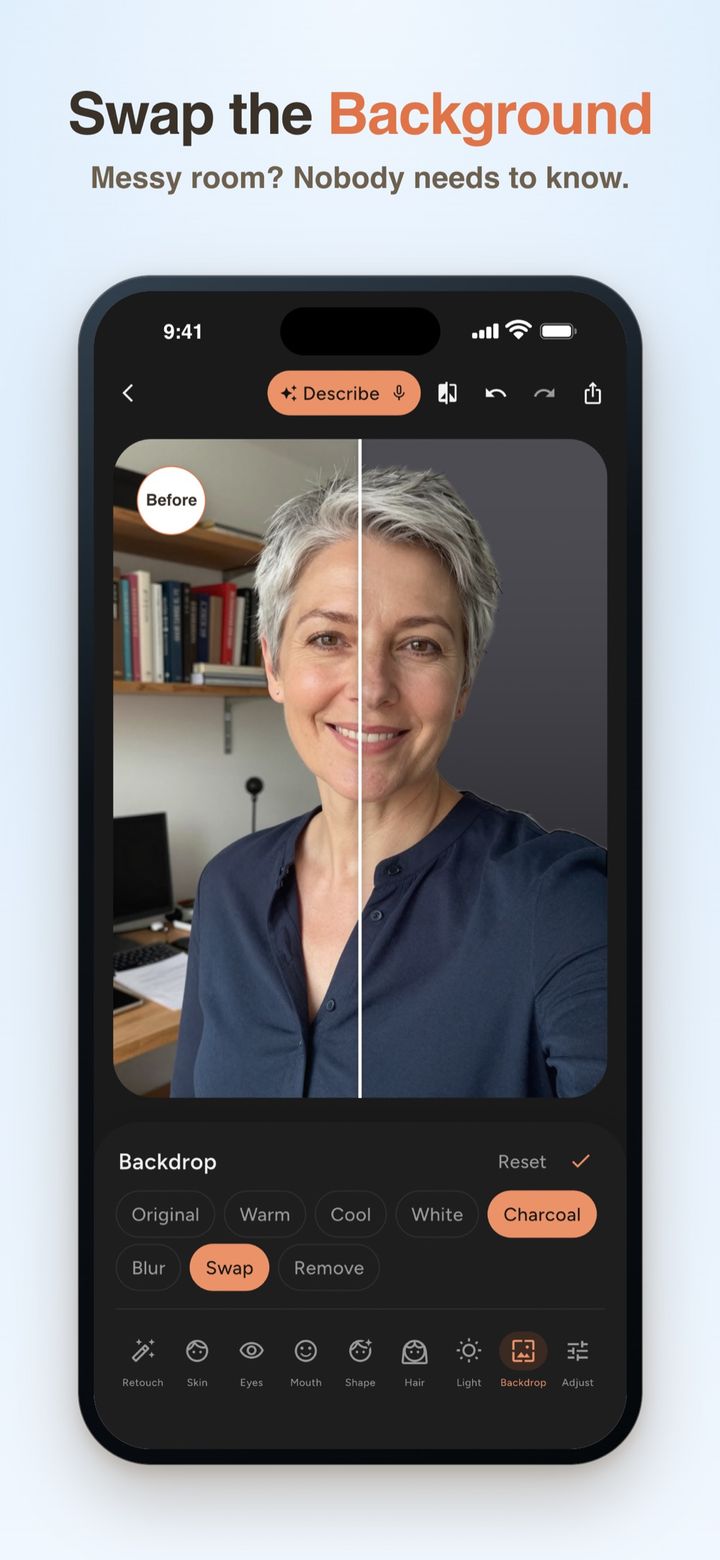
You need a profile photo for a new job, a work account or your CV, and the only good picture of you is a selfie taken in the kitchen. Your face is fine. The fridge and the laundry behind you are not.
You don't need a photographer for this. Here's how to turn a normal selfie into a work profile photo on iPhone with FaceMend, without ending up with a picture that looks like someone else. We make FaceMend, so it's the app we know best.
Before you start
FaceMend needs iOS 17 or later and runs on iPhone and iPad. There's no Android version.
Profile photo mode and the Backdrop tool are part of FaceMend Pro. You can try both on your own selfie before paying anything. The Pro edits show as a live preview, and if you decide not to buy, "Save without Pro edits" keeps the free part of your edit.
Pick the right selfie first
The app can fix the background and the light a little. It can't fix a bad starting photo, so this part matters more than any slider.
- Face the window. Light from the front is soft and even. A window behind you turns your face into a shadow.
- Hold the phone at eye level or slightly above. From below, nobody looks their best.
- Leave some space around your head and shoulders. The crop needs room to work with.
- Take a few and pick the sharpest. Tap on your face before you take the photo, so the camera focuses there.
- Use your normal expression. The one people will see when they meet you.
Make the profile photo, step by step
- Open FaceMend and tap Profile photo on the Home screen.
- Choose Work. There's also a Dating preset, for dating profiles.
- Pick the backdrop: Studio or Blurred. Studio puts a plain studio backdrop behind you. Blurred keeps your room but softens it, so it reads as a background, not as your kitchen.
- Choose your selfie. FaceMend crops it to head and shoulders, puts in the backdrop, adds soft light and a gentle skin smoothing.
- Check the edges around your hair. Zoom in. FaceMend keeps the edges around hair clean, but loose strands against a busy background are the hardest part, so it's worth a look.
- Change the backdrop if you want another one. Open the Backdrop tool to blur, remove or swap the background. There are 16 studio backdrops to pick from.
- Save it and open it in the Photos app to see it at normal size.
Keep it looking like you
A work photo has one job: people should recognise you when you join the call or walk into the room.
- Fix only what won't be there next week. A spot on your chin can go with one tap in Retouch, and dark circles after a short night can be reduced. Both are free. Our guide to removing a blemish covers how to keep it natural.
- Keep smoothing low. The preset already adds a gentle amount. More than that starts to look plastic, and that's the first thing people notice.
- Leave your face shape alone. Reshape tools are fine for fun photos. On a work photo, the difference shows the first time you meet someone.
- Go for a calm backdrop. A dark charcoal or another neutral backdrop keeps the attention on your face. A bright colour fights with it.
What this can't do
- It doesn't take a new photo. Profile photo mode works with the selfie you give it: framing, backdrop, light and a little smoothing. It won't change your clothes, your pose or the camera angle. A blurry or very dark selfie gives a blurry or dark profile photo. Enhance (Pro) can sharpen a small or soft photo, but a sharp start is always better.
- It's not for passport or ID photos. Those have their own strict rules. Use a photo service or follow your government's instructions for those.
- Saving the profile photo needs Pro. You can preview everything for free, but the backdrop, the profile crop and the HD export are Pro. The free export goes up to 1920 px on the long side, which is plenty for a profile picture.
- iPhone and iPad only, on iOS 17 or later.
The short version
Take the selfie facing a window, with the phone at eye level. In FaceMend, tap Profile photo, choose Work, pick Studio or Blurred, and check the hair edges. Keep the retouch light. A plain backdrop and soft light make a selfie look like a profile photo. Leaving your face alone makes it look like you.