
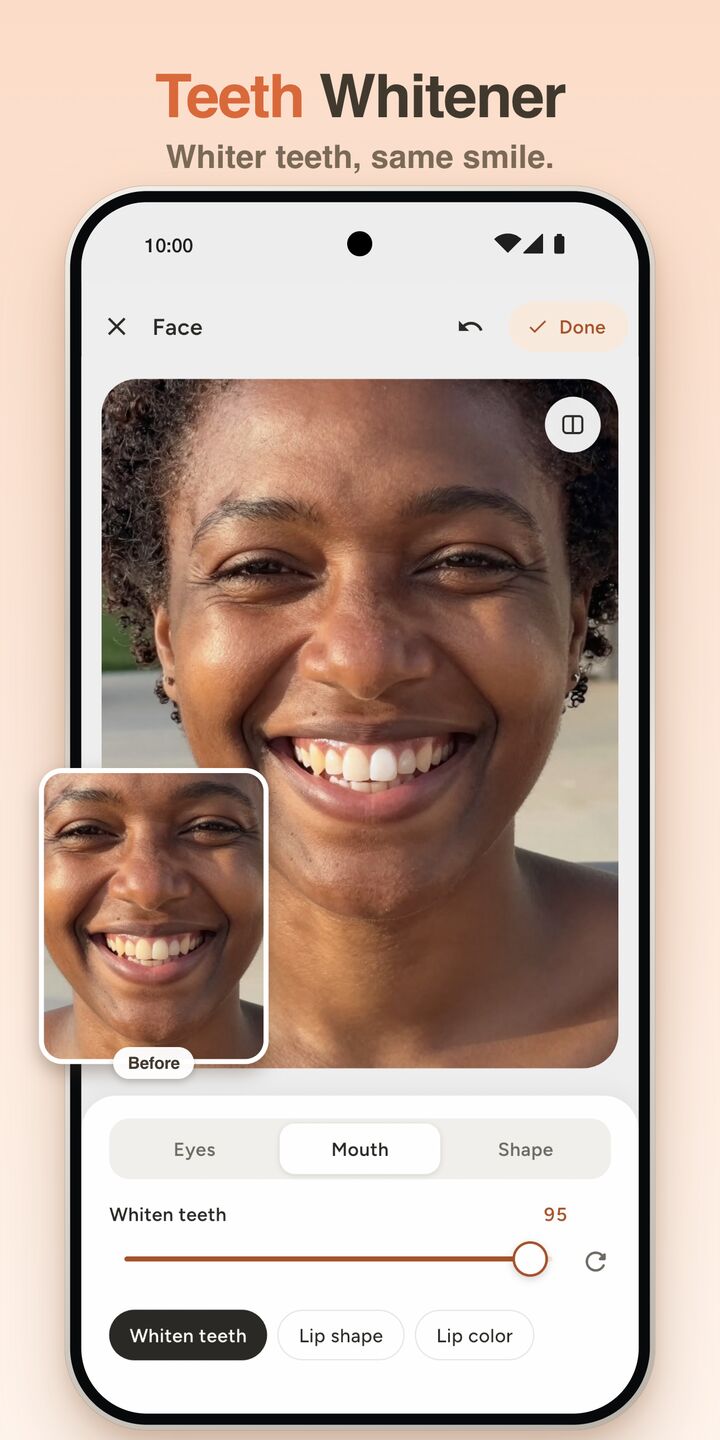
You took a good selfie on your Android phone, but there's a spot on your chin and your teeth look yellow under the kitchen light. Then the free editor you tried puts its logo on the result, or wants credits before it lets you save.
FaceMend is now on Google Play, and the basic fixes are free there. We make FaceMend, so this is the app we know best. Here's how to do the usual touch-ups on Android, and what is free and what isn't.
Before you start
FaceMend needs Android 7.0 or later. There's no account to create, no ads and no credits, and the edits happen on your phone.
On Android, these are free: smooth skin, healing blemishes (tap and patch), teeth whitening, eye brightening, dark circles, four eye colours (hazel, green, blue and brown), three lip shades (Natural, Rosy and Nude) with the Sheer and Satin finishes, basic reshape (face slim, jaw, chin length, nose and eye size), filters, adjust, crop, and saving up to 1920 px. No save carries a watermark, free or not.
The other tools are Pro. Every Pro tool previews live on your own photo, so you can see the result before you decide. If you don't buy, "Save without Pro edits" saves the photo with only the free edits.
This is how it stands in November 2026. The iPhone version has its own split, so a guide written for iPhone may say something different.
Find your way around
Open your selfie and you'll see seven buttons along the bottom: Retouch, Skin, Face, Hair, Light, Backdrop and Adjust. Face has three tabs, Eyes, Mouth and Shape. Most of what a selfie needs is under Retouch and Face.
Heal a spot
- Open Retouch.
- Tap the spot to heal it. Do the same for the next one.
- Use Patch for a bigger uneven area, like a red patch on the cheek.
- Zoom out and compare with the skin around it. If it looks too clean next to the rest of your face, undo and leave a bit.
Spots, the tool that circles the spots it finds so you can remove them all at once, is Pro on Android. It can miss one, and then you tap that one yourself.
Whiten teeth and brighten eyes
- Open Face and go to the Mouth tab. Teeth whitening only changes the teeth. Your lips stay as they are.
- Go to the Eyes tab and use Brighten. It only touches the whites of the eyes.
- Reduce dark circles in the same tab if you slept badly.
Keep all three lower than you think. Teeth that end up whiter than the whites of the eyes look fake. Look at the result at normal size before you save, not zoomed in.
Smooth skin without the plastic look
Skin smoothing is under Skin. The round Auto button in the editor sets skin smoothing for you, and you can turn it down afterwards. A little goes a long way. If the skin loses its texture, it stops looking like you.
When the problem is not your face
Some of what spoils a selfie is behind you, or next to you. These tools are Pro on Android:
- Backdrop: blur, remove or swap the background, with 16 studio backdrops. Handy for a messy room.
- Profile photo mode: Work and Dating presets for a CV or a dating profile.
- Eraser: tap a person or object to remove it. The removal pack downloads once, the first time you use it.
- Enhance: sharpens a small or soft photo. It needs a newer phone.
- Relight: adds light to a flat or dark face.
FaceMend can also edit just one face in a group photo, up to four people, and retouch a selfie video (smooth skin, whiter teeth and fewer dark circles).
Save it
Saving is JPEG by default. You can pick HEIC under Format, and if your phone can't save HEIC, FaceMend saves a JPEG instead. The free save goes up to 1920 px, which is plenty for a profile picture or a chat. HD export is Pro. If you want to show the change, you can also save a before/after split image.
What it doesn't do on Android
- No "Describe the fix". On iPhone you can type what to change. On Android you use the tools yourself.
- No Siri or Shortcuts, and no HDR on save. Those are iPhone features.
- No one-tap Auto fix or Looks. Those are in the iPhone version only. The round Auto button only sets skin smoothing.
- It's not for passport or ID photos. Those have their own rules.
- Some tools need a download or a newer phone. The Eraser pack downloads on first use, and Enhance only runs on newer phones.
The short version
Install FaceMend from Google Play, open the selfie, tap away the spots in Retouch, then whiten teeth and brighten eyes under Face, a little at a time. Save it. There's no watermark on the photo, and you don't need an account. Backdrop, Eraser and the other Pro tools show a live preview first, so you know what you'd get.